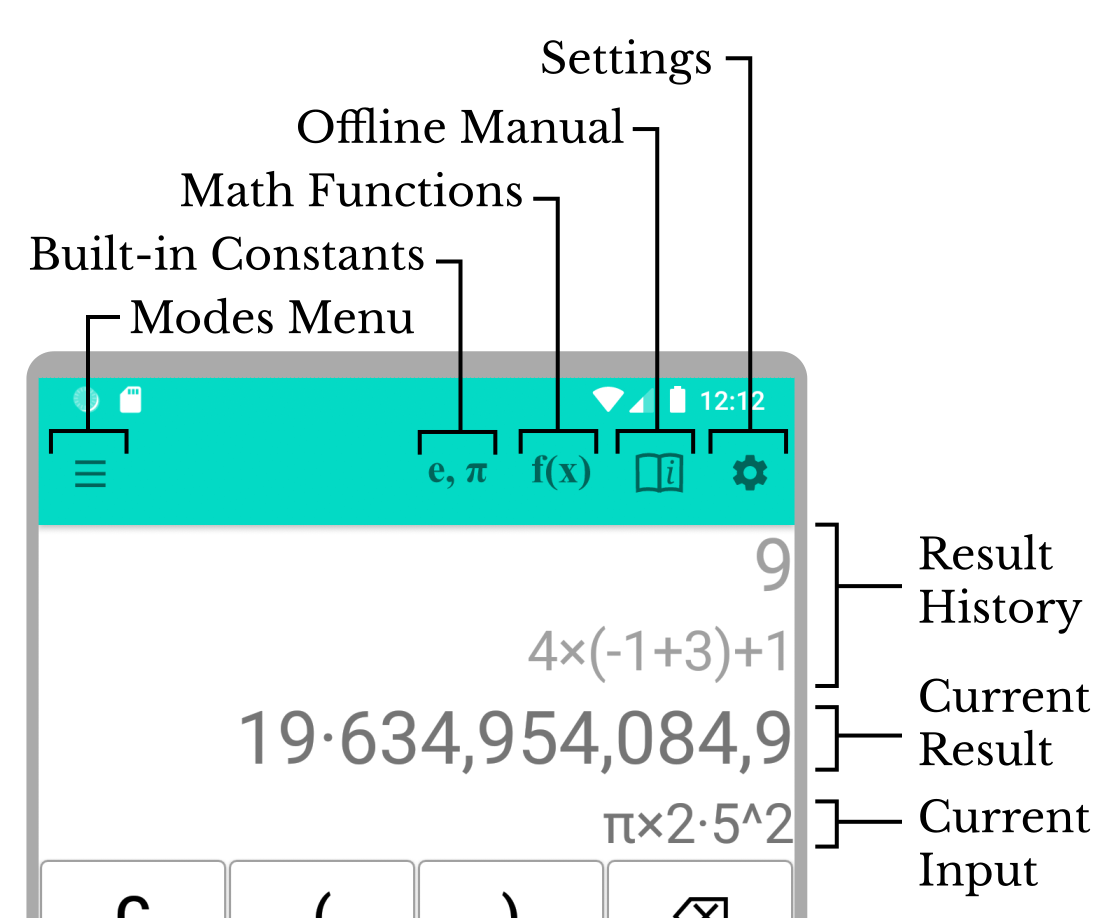
SmartiCalc’s interface is designed to be similar to that of a handheld calculator while offering advanced features not found in a typical production model. This app is intended to only be operated in portrait mode. At the top of the screen is a menu bar with five selectable functions. Below this is the display of calculations and results, with results in a slightly larger size by default; this display is scrollable and previous calculations and results are found above in a lighter gray color. The remaining majority of the screen is taken up by the input keypad—there are three major variants of which two have minor sub-variants, leading to five in total.
SmartiCalc has a number of different Modes of operation which determine what kind of number the calculation is using. Most handheld calculators offer just floating-point calculations, while SmartiCalc offers in addition: complex, rational (fraction), integer and “Base N”. Several of these modes are multiprecision (arbitrary accuracy), or have multiprecision variants available. This Quickstart covers use of floating-point mode first in order to teach the basics of SmartiCalc’s operation; use of other modes is similar enough that use can be determined by experimentation, further detailed operation specifics are covered in the pages accessible from the menu at the top right of this screen.
Operation basics
In this Manual, key presses by the operator are represented as , while the read-out on the display is represented as 0. After performing the calculation:
The current result display reads:
7
And below this the current calculation reads:
3·5×2
Both of these are saved when entering subsequent calculations and either can be pasted into the current calculation with a long press (after scrolling the display up, if necessary). Notice that while entering the above calculation, the current numerical value is displayed as the result, so firstly 3.5 and secondly 2. Before is pressed the calculation remains editable with the backspace key.
After pressing , it is possible to begin another calculation:
The current result now reads:
-10,000,000
Notice that the commas separating thousands appear in both the calculation and result automatically; you should not try to press as this button is used for separating parameters to functions taking multiple parameters.
Care has been taken to try to ensure that only valid calculations can be entered, for example pressing twice does not produce ×× in the running calculation. Some errors cannot be trapped, for example entering:
Produces in the result display:
ERR05
(This is the internal error code for attempted division by zero.) Notice that the current calculation remains editable and it is possible to correct it using the backspace key and other keys, for example:
Now produces the display:
0.2
Floating-Point Modes

The floating-point keypad is designed to be as familiar as possible, while presenting features not found on most production handheld calculators. The buttons are listed below, together with a description of their intended use:
- , … : For inputting decimal digits, the maximum recognized accuracy for Floating Point mode is 15 digits (100 digits for Floating Multiprecision).
- : Insert a decimal point, a preceding is required when entering a number less than ±1.
- , , , : Standard arithmetic operators, with multiplication and division having a higher precedence than addition and subtraction. Negative numbers can be entered by preceding them with .
- : Calculate square root of the immediately preceding value.
- : Raise the preceding value to the power of the following value, sometimes called index or exponent operator (shown as ^). This operator has a higher precedence than multiplication and division.
- : Change the order of magnitude of the preceding value, usually followed by a positive or negative integer. This key is often labeled EXP on production calculators.
- : Convert the preceding number to a percentage. Note that entering 20% is exactly the same as entering (20/100) and this operator has the highest precedence.
- , : Introduce sub-expressions of higher precedence. Note that on pressing the sub-expression is evaluated and shown as the running result.
- : Separate parameters when entering functions (see below), not possible to be used any other way.
- : Evaluate the current expression and place the result immediately above it. In case of evaluation failure, an error code beginning ERRxx is shown and the current expression remains editable.
- : Paste the result of the previous calculation into the current calculation. Note that this is the same as a long press on the same result in the display.
- : Delete the last element of the current calculation, unless has been pressed and the result is not an error.
- : Erase (clear) the current calculation and display 0 as the running result.
Constants
The Constants Menu is opened by pressing e, π on the menu bar. Choosing an item from this menu pastes the selected constant into the current expression and closes the menu; a constant can be used anywhere a numerical value is valid. Having selected a constant, the running result changes to show its actual value; the selected constant is also placed in the recent history of the mode’s constants menu.
Functions
The Functions Menu is opened by pressing f(x) on the menu bar. Choosing an item from this menu begins entry of the selected function at the end of the current expression (with an opening parenthesis) and closes the menu. Parameter(s) can be numbers, expressions, constants from the Constants Menu, or the result of other functions from the Functions Menu. For functions taking more than one parameter the key needs to be used to delimit them. Usage of the key is only possible when the correct number of parameters have been entered, and the result of the function is displayed as the current result until further input is entered or pressed.
Complex Modes
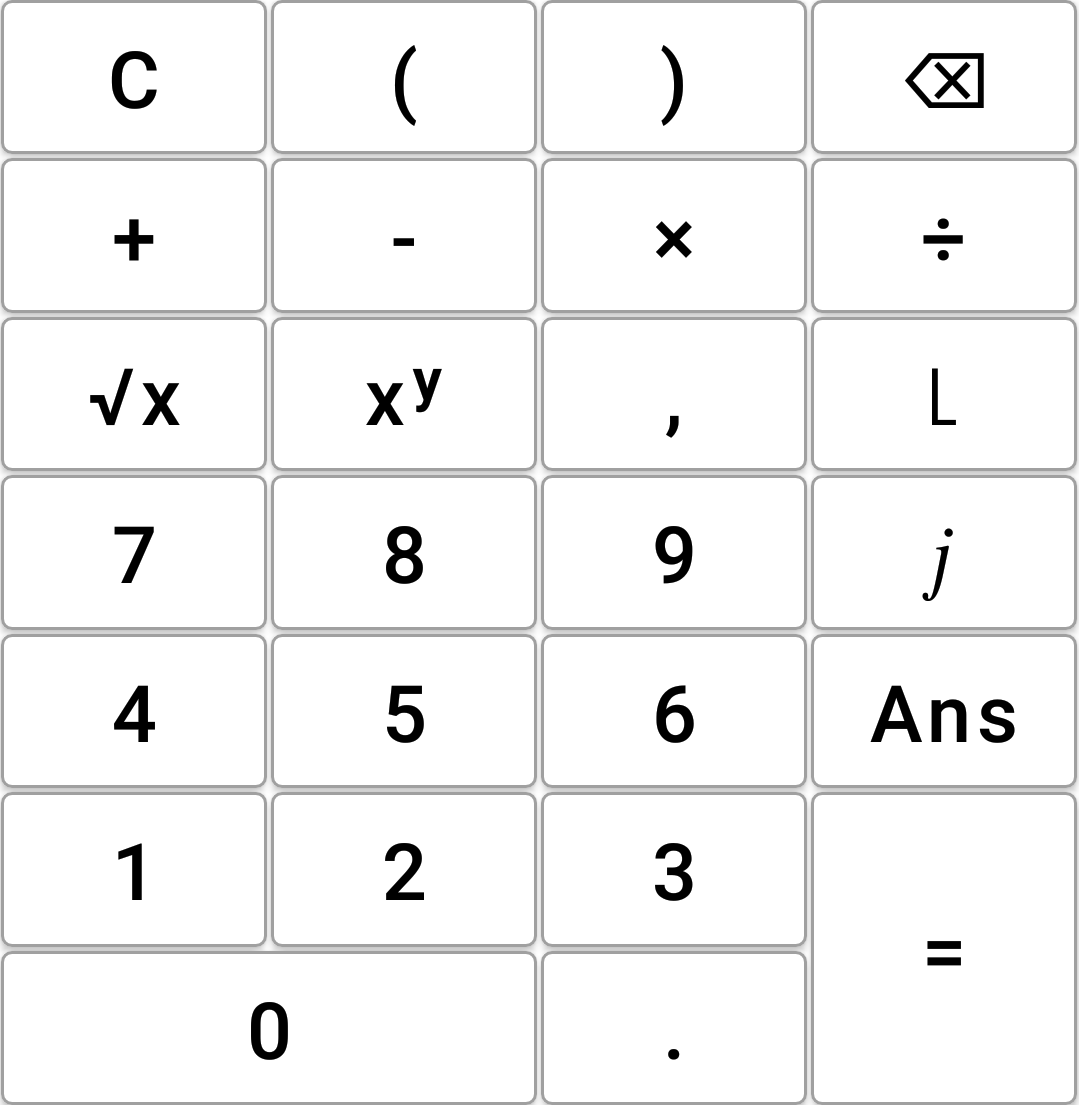
The complex number calculations keypad is very similar to the floating-point keypad, with and changed to and . These two new keys for the Complex Floating and Complex Multiprecision modes are described below:
- : Enter an imaginary number, note this key should be entered after an integral or floating-point number. To obtain an imaginary number using a built-in constant, such as πj, enter as (π×1j) or (1j×π) (the parentheses are optional).
- : Enter a complex number in polar form, that is r⌊θ. Both sides can be optionally be parenthesized, for example 5⌊(π/2) is equivalent to 5j.
By default, complex results are displayed in cartesian (x+yj) format; it is possible to display results in polar form by changing the Settings.
Constants
All of the constants available in the floating-point modes are also available in the complex modes, and are entered into the current calculation in the same way.
Functions
Only a small subset of the functions available in the floating-point modes are available in the complex modes. Operation is identical to the floating-point modes, and for almost all available functions the parameter(s) can be real, imaginary or complex.
Multiprecision Modes
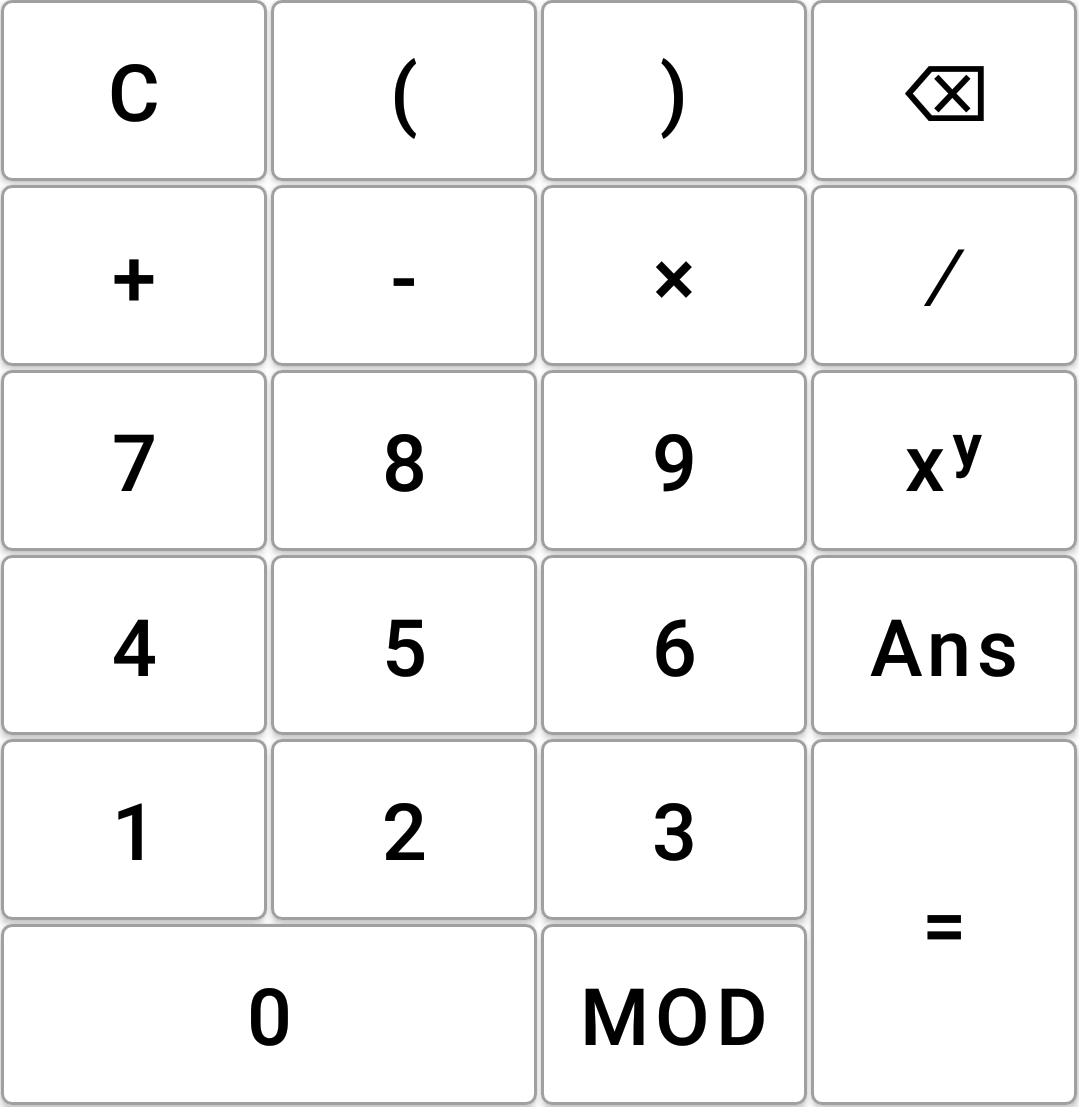
The integer/rational keypad is fairly similar in layout to a production handheld calculator, compared to the floating-point/complex keypad there is one row fewer. The buttons are listed below, together with a description of their intended use:
- , … : For inputting decimal digits making up an integer in Integer Multiprecision mode, or a numerator or denominator in Rational Multiprecision mode.
- , , : Standard arithmetic operators, with multiplication having a higher precedence than addition and subtraction. Negative numbers can be entered by preceding them with .
- : Floor division (Integer Multiprecision mode) or the fraction (rational) operator (Rational Multiprecision mode), each with the same precedence as multiplication.
- : (Integer Multiprecision mode only.) Return the remainder from a division of the preceding value by the following value. Note sometimes this operator is called %.
- : (Rational Multiprecision mode only.) Make a fraction out of a decimal number. Note that only denominators up to 1,000,000 are supported, and that for recurring decimals 15 significant digits are required.
- : Raise the preceding value to the power of the following value, sometimes called index or exponent operator (shown as ^). This operator has a higher precedence than multiplication and division. Note that only positive integer powers are permitted.
- , : Introduce sub-expressions of higher precedence. Note that on pressing the sub-expression is evaluated and shown as the running result.
- , , , : As for floating-point modes.
The Constants Menu and Functions Menu are both unavailable in these modes, as they are not compatible with integer/rational calculations.
Integer Base N Mode
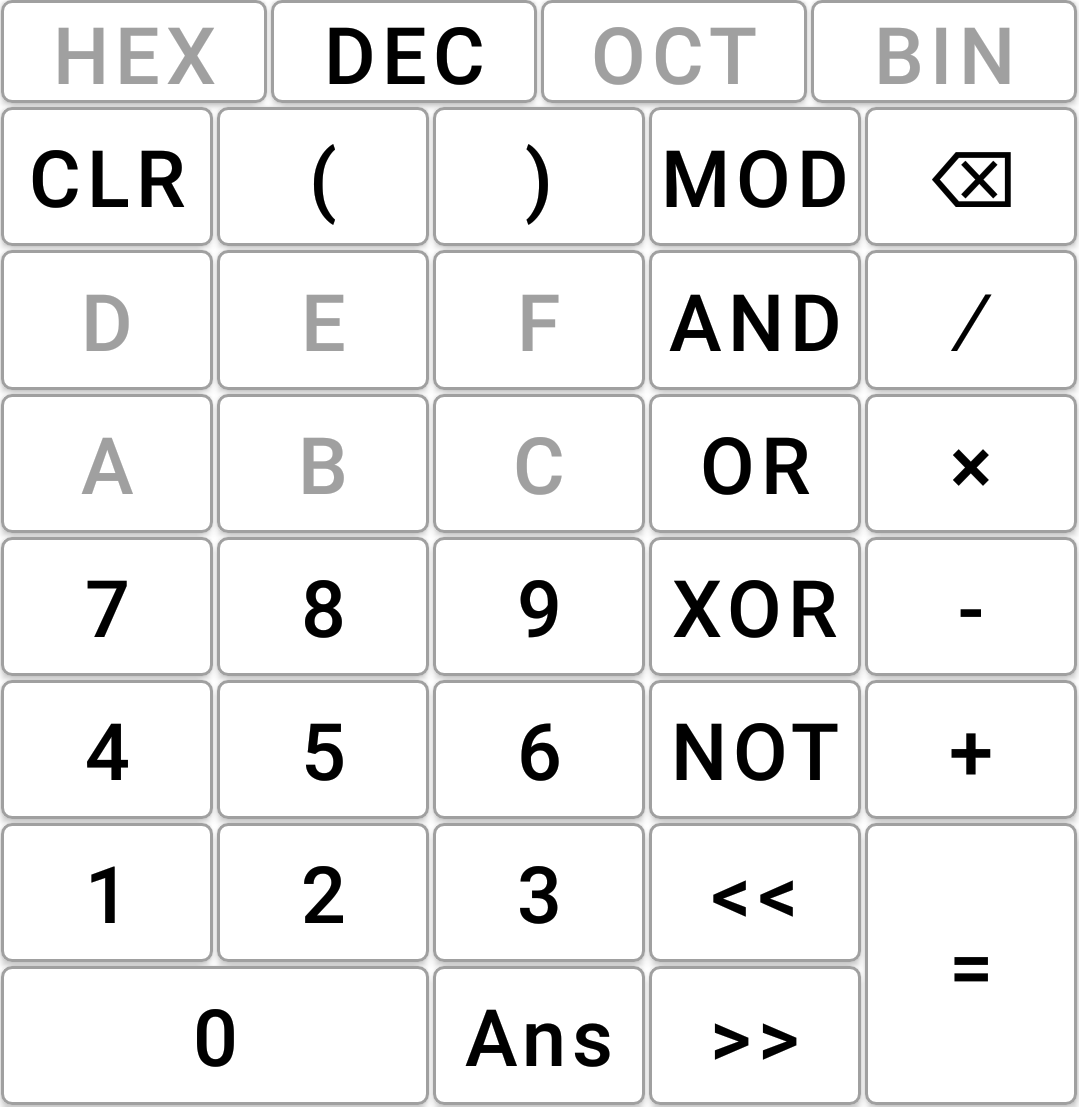
The Integer Base N keypad differs in many ways to the others, and is designed to combine as much functionality as possible for the four available bases (binary, octal, decimal, hexadecimal). The buttons are listed below, together with a description of their intended use:
- , , , : Allow entry of base 16, base 10, base 8 and base 2 numbers respectively. Numbers of different bases can be combined in the same calculation, only the current number being entered is affected by pressing these keys. Note that the base of the result after pressing cannot be changed, however pressing to copy the result into a new (empty) calculation allows viewing of the result in different bases.
- , … , … : For inputting any permitted digits from the current base. Digits not available in bases 10, 8, and 2 are grayed out when one of these bases is selected.
- , , : Standard arithmetic operators, with multiplication having a higher precedence than addition and subtraction. Negative numbers can be entered by preceding them with , these are displayed in two’s-complement form at the current bits setting (default: 64).
- : Floor division with the same precedence as multiplication.
- : Obtain the result from an integer division, having the same precedence as multiplication and floor division.
- : Bitwise inversion with the result shown in two’s-complement form at the current bits setting (default: 64).
- , , : Bitwise binary operations, with AND having the higher precedence, but lower that addition and subtraction, and OR the lowest.
- , : Binary shift left or right, resulting in a multiplication or division by a power of two. Note these operators have a higher precedence than AND.
- , : Introduce sub-expressions of higher precedence. Note that on pressing the sub-expression is evaluated and shown as the running result.
- , , , : As for floating-point modes. Clear has a different name to avoid confusion with hexadecimal C.
The Constants Menu and Functions Menu are both unavailable in this mode, as they are not compatible with integer calculations.
Settings
The Settings screen is opened in any mode by selecting the cog icon at the top-right of the main display. Settings take effect when the arrow shown at the top-left of the Settings screen is selected; note that closing the app without going back to the main display discards any settings changed. Settings which have been applied are automatically saved when closing the app, and are reloaded when it is started.
There are many different aspects of SmartiCalc which can be configured from the Settings screen, some of which only apply to specific modes. These are listed below, together with guidance on their usage and effects:
- Floating/Complex Results Format: Choose between General, Fixed and Scientific for all floating-point and complex modes, note that this does not affect number input or current input display. General is the most common, minimizing the size of the result being displayed and avoiding displaying a decimal point where possible. Fixed always displays a decimal point and a fixed number of places after it, even if they are zeros. Scientific always displays results with one digit to the left of the decimal point, and an exponent of the form ×10ˣ at the end.
- Result Precision: Set the accuracy of displayed results for Floating Point and Complex Floating modes. This is the number of decimal places for Fixed (see above) or the maximum number of digits (excluding exponent) for General and Scientific. As these modes use IEE754 Double-Precision types, the calculation accuracy is always to approximately 15 decimal digits.
- Multiprecision: Set the accuracy of displayed results for Floating Multiprecision and Complex Multiprecision modes. The calculation accuracy for these modes is always 100 decimal digits. To set the slider to an exact desired number, it may be necessary to rotate your device.
- Decimal Point: Choose between comma, dot and mid-dot for decimal point display. Note that this does not alter the appearance of the button, only the display.
- Show Thousands Separator: Choose whether to show a comma (or dot when Decimal Point is a comma) to separate triplets of decimal numbers (all modes except for Base N).
- Imaginary Symbol: Choose between i and j to denote the imaginary number. Note that this does not alter the appearance of the button, only the display.
- Polar Symbol: Choose the character to denote the separator used when entering complex numbers in polar form. Note that this does not alter the appearance of the button, only the display.
- Complex Result Format: Choose between Rectangular, Polar and Adaptive for display of complex number results. Note that Adaptive displays in the format of the most recent type of complex number entered in the current calculation.
- Complex Epsilon Rounding: Choose whether to “round to nearest” (including zero) for complex number display where the (small, default) epsilon value is greater than the difference.
- Rational Separator: Choose between a forward slash and a longer symbol for Rational Multiprecicision mode. Note that this does not alter the appearance of the button, only the display.
- Default Number Base (Base N Mode): Choose the initial base that Integer Base N mode uses.
- Accuracy for Result (Base N Mode): Choose the precision of large and negative number results displayed in Integer Base N mode. The accuracy for calculation is always 64 bits.
- Display Recent Constants: Choose whether to show the five most recently-used constants at the top of the Constants Menu. Note this list is individual to all compatible modes. It is also possible to clear this list.
- Display Recent Functions: Choose whether to show the five most recently-used functions at the top of the Functions Menu. Note this list is individual all compatible modes. It is also possible to clear this list.
- Display Size: Set the percentage of the available screen used by the display.
- Answer Text Size: Set the size of the text used for answer display. By default this is slightly larger than Calculation Text Size (see below).
- Calculation Text Size: Set the size of the text used to display the current input calculation.
- Button Text Size: Set the size of the text in the keypad buttons.
- Default Mode: Choose which mode SmartiCalc starts in.
- Factory Reset: Reset all of the above options to their defaults. Note that returning to the main screen is necessary for this to take effect.
Error Codes
Below is a complete list of error codes used by SmartiCalc when encountering invalid input:
- ERR00: Bad native function call
- ERR01: Bad number
- ERR02: Bad number for result
- ERR03: Missing ‘)’
- ERR04: Number expected
- ERR05: Divide by zero
- ERR06: Unknown operator
- ERR07: Bad number for base
- ERR08: Bad value for base
- ERR09: Bad index
- ERR10: Bad use of exponent operator
- ERR11: No such variable
- ERR12: Missing parameter to function call
- ERR13: Wrong number of parameters to function call
- ERR14: Bad function call
- ERR15: Parameters must be real values
- ERR16: Cannot apply polar operation to complex number
- ERR17: Bad use of polar operator
- ERR99: Uncaught exception
Technical Notes
This page summarizes some important details of how SmartiCalc works. It is not necessary to understand all of the content of this page in order to use SmartiCalc effectively, this page is intended for professionals wishing to evaluate whether SmartiCalc can fulfil their needs.
SmartiCalc is entirely written in Kotlin and C++. The C++ backend uses a number of different types (“classes”) from Boost Math and Boost Multiprecision; these libraries are regarded as stable and mature, and hardware floating-point modes are also available. Below is the full list of operating modes, together with their numerical types:
- Floating Point uses hardware double-precision format (C++ type
double) for maximum speed and reliability, with display accuracy of up to fifteen significant figures. - Floating Multiprecision uses the type
cpp_bin_float_100from Boost C++ Multiprecision, with all calculations accurate to one hundred significant figures, and display accuracy up to the same. - Complex Floating uses the C++ Standard Library’s
complex<double>type, with real and imaginary components able to be input and displayed in rectangular or polar form with up to fifteen significant figures of accuracy. - Complex Multiprecision uses the type
cpp_complex_100from Boost C++ Multiprecision, with all calculations accurate to one hundred significant figures, and display accuracy up to the same, and with input and display formats the same as for Complex Floating - Rational Multiprecision uses the type
cpp_rationalfrom Boost C++ Multiprecision, with entry of rational (fractional) numbers of arbitrary accuracy numerator and denominator to be input, and with results displayed as an improper fraction with no loss of accuracy. - Integer Multiprecision uses the type
cpp_intfrom Boost C++ Multiprecision, with entry of integers of arbitrary accuracy possible, and while results are truncated (rounded down) for division, calculation of the remainder from any division is possible. - Integer Base N uses hardware 64-bit integer arithmetic, with entry of integral numbers in binary, octal, decimal and hexadecimal. Arithmetic and bitwise operations are available, and display in any of these bases at an accuracy of up to 64 bits.
SmartiCalc has a large number of built-in constants, which can be inserted at any point where a numerical value is valid. The constant values available fall into two categories:
- Mathematical Constants accurate to 100 significant figures in the Multiprecision modes, from Boost Math1.
- Physical Constants accurate to best observable limits, from Wikipedia2.
All of the constants are real numbers and are only available to to floating-point and complex modes.
SmartiCalc has a large number of built-in functions, almost all of which are available to the two floating-point modes, and some of which (primarily trigonometric) are available to the two complex modes.
The Mathematical functions available are provided by:
- C++ Library Functions for double-precision real and complex, from the C++
<cmath>header file trigonometric3 plus special4 functions. - Special Functions for multiprecision real and complex, from Boost Math5.
Footnotes
- https://www.boost.org/doc/libs/1_83_0/libs/math/doc/html/math_toolkit/constants.html
- https://en.wikipedia.org/wiki/Physical_constant
- https://en.cppreference.com/w/cpp/numeric/math
- https://en.cppreference.com/w/cpp/numeric/special_functions
- https://www.boost.org/doc/libs/1_83_0/libs/math/doc/html/special.html
 Learn Modern C++